
Copy / Migrate Workspaces to New Models
Info:
You need administrative rights for this task.
Migration tries to match node names, baselines, dimensions etc. to the new model - it works best, when the models are similar. Especially baselines names and dimensions should be the same!
If you have spent a lot of time creating a detailed workspace, you might also want to use this workspace (at least as a guideline) when working on a new model. Therefore, you have the option to copy (or more precisely migrate) an existing workspace onto a new model.
In the overview of your created workspaces, select the one that you want to migrate by opening the settings of the model via the three-dot menu. The settings will show which model the workspace is currently based on.
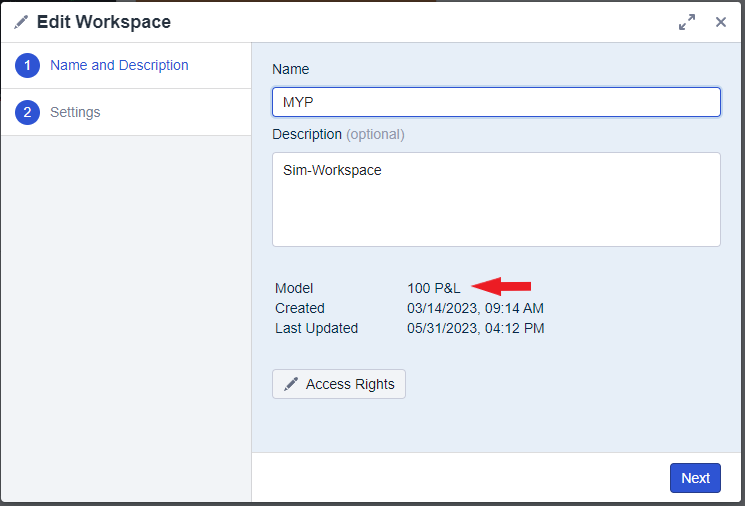
Copy workspace to a new model
- Press the ‘Valsight settings’ button in the menu on your left-hand side. You will enter the system configuration in a new tab.
- There, click on “Projects” for further configuration options.
- Select the project in which your workspace and model are and select “Show models”. Then choose the underlying model of the workspace that you want to migrate to a new model. You can see all workspaces of a model by clicking on “see list”.
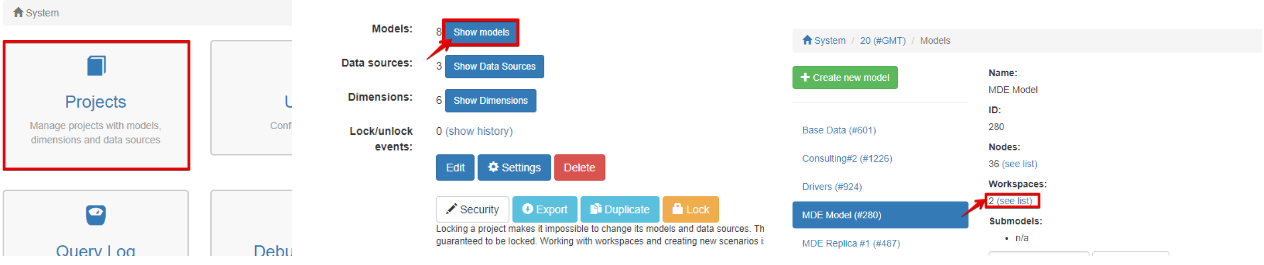
- Select the workspaces you want to migrate and select the new model you want to migrate them to from the drop-down menu below. Then simply click on “Migrate to model”. Usually, each workspace appears twice here, a “normal” and a “temporary” copy. The temporaryworkspace is the one you want in most cases - it is the latest working copy, so essentially what you see when entering the workspace. The normalworkspace is actually the last saved copy of the workspace (i.e. the last time you pressed SAVEin the workspace).
