
Part 4: Build the Driver Model
In this part, you create two models and build the cause-effect relations of the revenue model.
Models in Valsight define the underlying calculation logic that connects data, business logic, and drivers as the basis for scenario simulation.
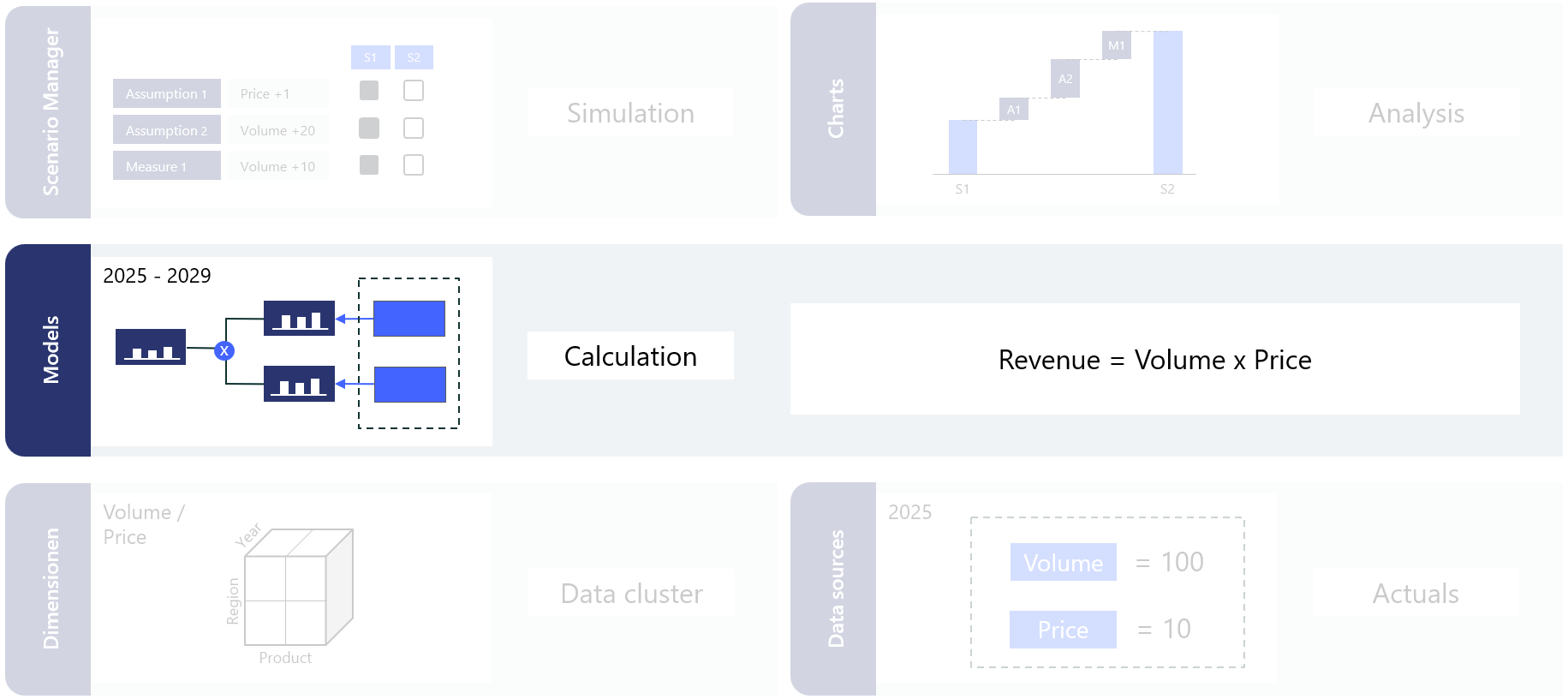
For detailed reference on any of the concepts here, see Modeling.
The model structure
Driver models in Valsight follow the “Valsight Fish” structure, read from right to left.
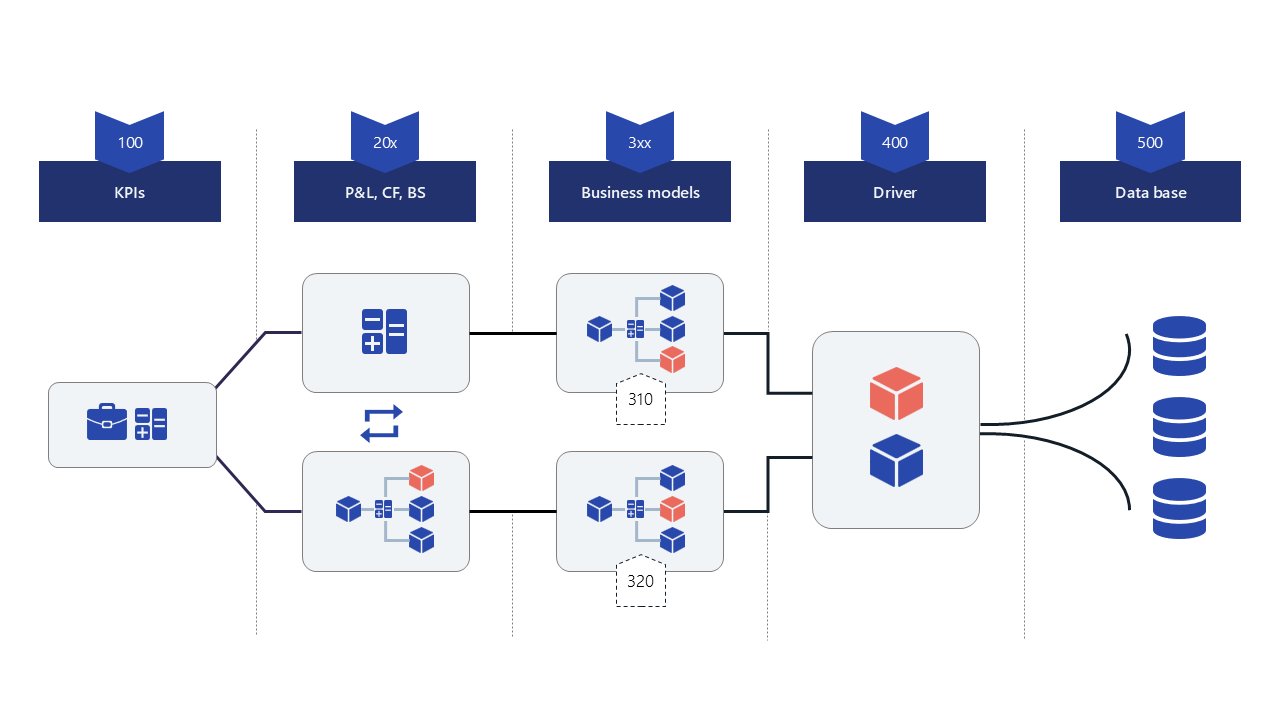
For this tutorial, you will create two models:
- 500_Data: contains the base nodes that pull in the Excel data
- 100_P&L: contains the drivers, calculation logic, and the revenue result
Watch the video guide
Step 1: Create the models
- Open the Model overview from the left menu bar.
- Click Add to create the two models:
| Field | 500_Data | 100_P&L |
|---|---|---|
| Description | Base data from Excel | Revenue calculation and drivers |
| Submodels | None | 500_Data |
- Click Create.
Step 2: Build the 500_Data model
The data model contains two base nodes that connect to the uploaded Excel data: one for volume and one for price.
- Open the 500_Data submodel by clicking its name.
- Click the Node button in the action bar at the bottom of the canvas.
- Create two Data nodes:
Volume (Base)
- Name:
Volume (Base) - Unit:
Quantity
Price (Base)
- Name:
Price (Base) - Unit:
EUR / Quantity
Connect to Excel data using the DATA function
- When the node is selected the function editor shows on the top of the canvas.
- Click the Data button
- Select Data source, Table and Measure in the dialog
- Click Insert. The following functions should appear in the editor:
- For Volume:
DATA("TutorialData", "Price and Volume", "Volume") - For Price:
DATA("TutorialData", "Price and Volume", "Price")
Use Data Preview to confirm that both nodes show 2025 values.
Step 3: Build the 100_P&L model
Switch to 100_P&L using the model selector in the header at the top left of the Model Editor.
- Create these nodes:
Volume
- Type: Standard node
- Name:
Volume - Unit:
Quantity - Formula:
ROLLFORWARD_ADVANCED('Volume (Base)')ROLLFORWARD_ADVANCED carries the 2025 base values forward into future years.
Market Growth
- Type: Simulation node
- Name:
Market Growth - Unit:
Percent - Formula:
EXPAND(0, "Year", "Region")EXPAND creates a dimensional structure for an empty node.
Update volume to:
ROLLFORWARD_ADVANCED('Volume (Base)', 'Market Growth')
Price
- Type: Standard node
- Name:
Price - Unit:
EUR / Quantity - Formula:
ROLLFORWARD_ADVANCED('Price (Base)')
Price Adjustment
- Type: Simulation node
- Name:
Price Adjustment - Unit:
EUR - Formula:
EXPAND(0, "Year", "Product", "Country") - This node must match the dimensions of
Price (Base).
Update price to:
ROLLFORWARD_ADVANCED('Price (Base)', 'Price Adjustment')
Revenue
- Type: Standard node
- Name:
Revenue - Unit:
EUR - Formula:
'Volume' * 'Price'
Use Data Preview to confirm that Revenue equals Volume times Price.
Node overview
| Node | Formula |
|---|---|
Volume (Base) | DATA("TutorialData", "Price and Volume", "Volume") |
Price (Base) | DATA("TutorialData", "Price and Volume", "Price") |
Volume | ROLLFORWARD_ADVANCED('Volume (Base)', 'Market Growth') |
Market Growth | EXPAND(0, "Year", "Region") |
Price | ROLLFORWARD_ADVANCED('Price (Base)', 'Price Adjustment') |
Price Adjustment | EXPAND(0, "Year", "Product", "Country") |
Revenue | 'Volume' * 'Price' |
What you have done
- Created two models:
500_Dataand100_P&L - Connected Excel data with DATA
- Used ROLLFORWARD_ADVANCED to project values forward
- Created simulatable drivers with EXPAND
- Calculated Revenue as Volume times Price
Next step
Continue to Part 5: Simulate.