
Perspective Selector
Introduction & Purpose
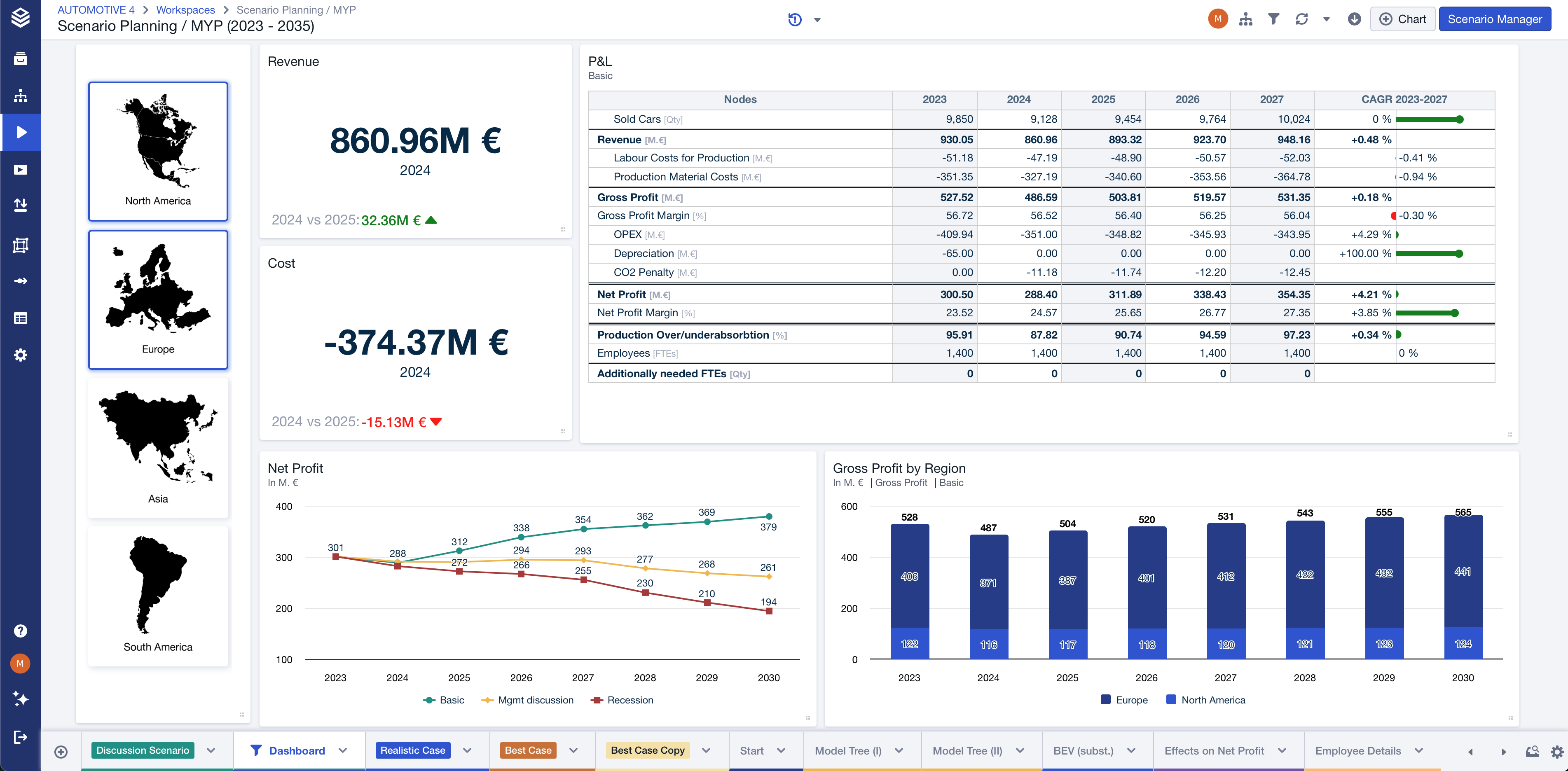
The Perspective Selector is a new interactive chart type introduced for enhancing presentations in Valsight. Its primary purpose is to enable decision-makers and presenters to apply predefined filters across sheets in a visually appealing, intuitive way — without switching to edit mode or accessing complex filter configurations.
Why it Matters
- Seamless Presentation Mode: Quickly adjust views during discussions.
- No Technical Know-How Required: Apply complex filters via a single click.
- Visual Storytelling: Each perspective can include images and tailored filter sets.
This functionality significantly simplifies scenario exploration and data storytelling during live meetings.
Navigating to the Feature
1. Creating a Perspective Selector
- Open a Sheet within your workspace.
- Click on “+ Chart” to open the chart wizard.
- Under the “Others” section, find and select the “Perspective Selector” chart type.
2. Configuring Each Perspective
A Perspective consists of a “Name”, an “Image” and a “Filter Selection”. All properties are optional and can be configured in every combination.
-
Perspective Name: The name will be shown in the perspective tile. If you upload an additional image the name will be shown as a tooltip.
-
Add Image (optional):
- Upload PNG/JPG (max 2.5MB, max width 1920px).
- If no image is provided, the name will be shown in the tile.
-
Add Filters:
- Select filter dimensions and values.
- Use the “Manage filters” button to edit filters.
- Applied filters are shown as tags in the dialog.
3. Interacting with the Tile
Once created:
-
Each draggable tab appears as a clickable button on the tile.
-
Clicking a button applies the associated filter set.
-
The tile header shows Edit and Settings (⚙️) icons on hover.
-
Via the cogwheel:
- Rename the tile via “Edit title”.
-
The tile can also be:
- Moved
- Duplicated
- Saved as a template (like other charts)
Managing & Customizing
Admin/User Rights
- No per-user customization: Perspectives are shared and synced across users.
- Edits in configuration dialogs are locked while someone is editing to avoid conflicts.
Tile Customization
-
Perspectives tile supports standard layout behaviors:
- Can be rearranged and resized.
- Supports vertical scroll if buttons/images exceed viewport. A horizontal Perspective tile can not be configured.
- Combining multiple perspective tiles to impact a worksheet is also possible.
Filter Behavior
-
Perspective Filters Logic:
- Filters within a perspective: UNION
- Across perspectives: applied based on button click (only one active)
- Combined with other sheet filters using INTERSECTION
-
No changes to:
- Sheet-level filters
- Filter conflict detection
- Chart subtitles (Perspective filters won’t appear here)
Info:
Perspectives are limited by the applied workspace filters, worksheet filters and chart filters.
Limitations
- Perspective Selectors are not shown in presentation mode.
- This feature requires CORPORATE or ENTERPRISE licenses.
Example Use Case
Imagine a boardroom slide where different departments (Sales, Marketing, Finance) need custom views. With the Perspective Selector:
- Each department has a pre-defined button.
- During the meeting, click a button to instantly shift the view to that department’s filters.
- Presentations stay clean, contextual, and responsive without edit interruptions.