
Configure Flexible Scenario Comparisons in a Single Chart
This guide shows you how to compare multiple scenarios in a single chart while displaying totals for one scenario and detailed breakdowns for another.
You will create a mixed chart where:
- Scenario 1 (for example, Basic) is shown as a total line.
- Scenario 2 (for example, Discussion (Realistic Case)) is shown as a stacked breakdown.
- Hidden elements remain part of the configuration but are not displayed in the chart or legend.
Prerequisites
- You have access to a Workspace.
- The node you want to analyze exists (for example, Gross Profit).
- At least two scenarios are available.
Steps
1. Create a mixed chart on your target node
-
Open your Workspace.
-
Add a new mixed chart.
-
Select the node you want to analyze (for example, Gross Profit).
-
Keep the default axes:
- X-axis: Time
- Data series: Scenario
At this stage, scenarios are displayed across time.
2. Filter to two scenarios
- Open the Filters section.
- Filter the Scenario dimension.
- Select the two scenarios you want to compare (for example, Basic and Discussion (Realistic Case)).
- Save the filters.
3. Configure axes
-
Open Configure Axes.
-
Set:
-
X-axis: Time
-
Data Series:
- Scenario
- Engine (total)
- Engine
-
-
Activate the Subtotals for x-axis toggle.
-
Confirm the configuration.
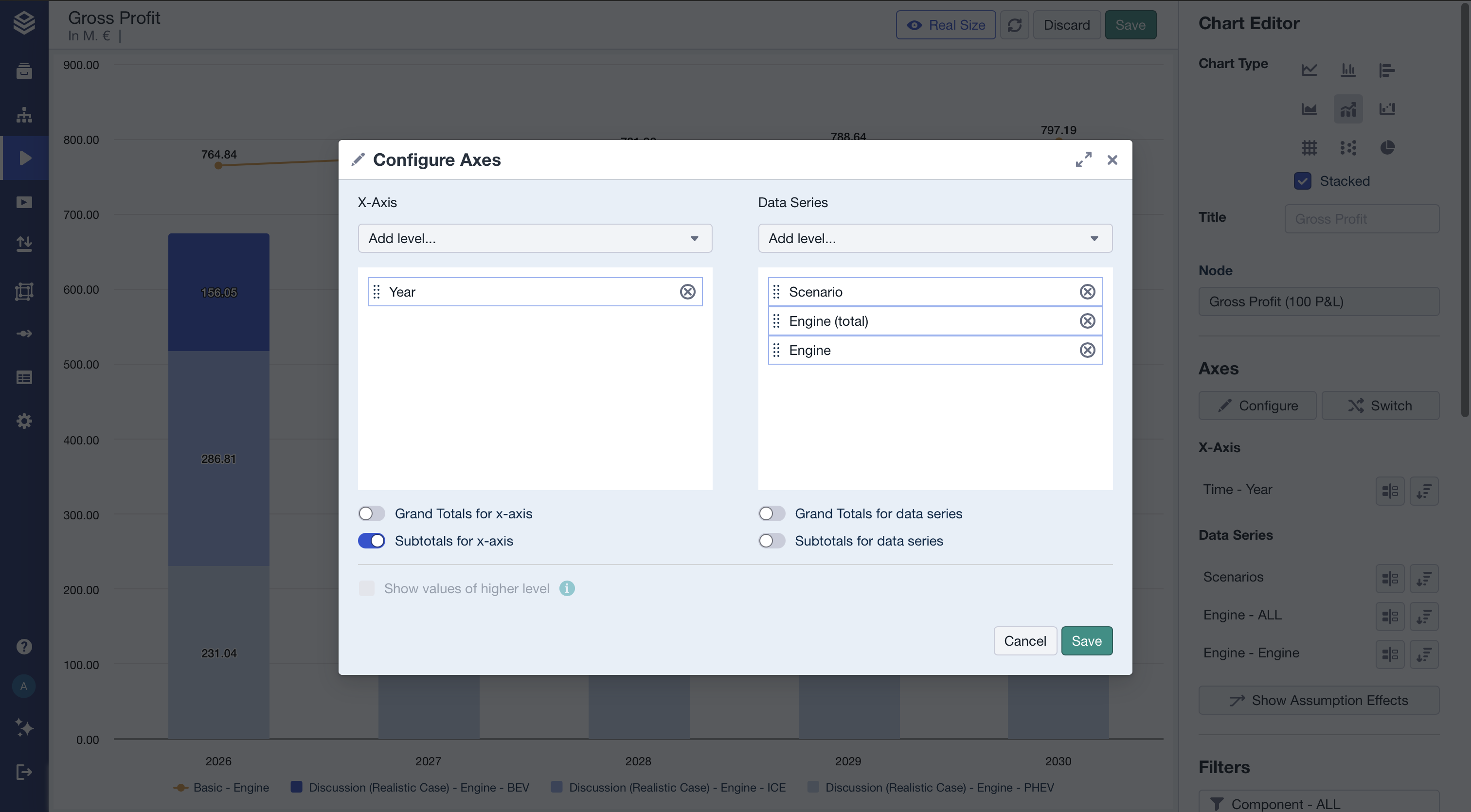
This setup enables both totals and detailed breakdown levels to coexist.
4. Configure data series visibility and chart types
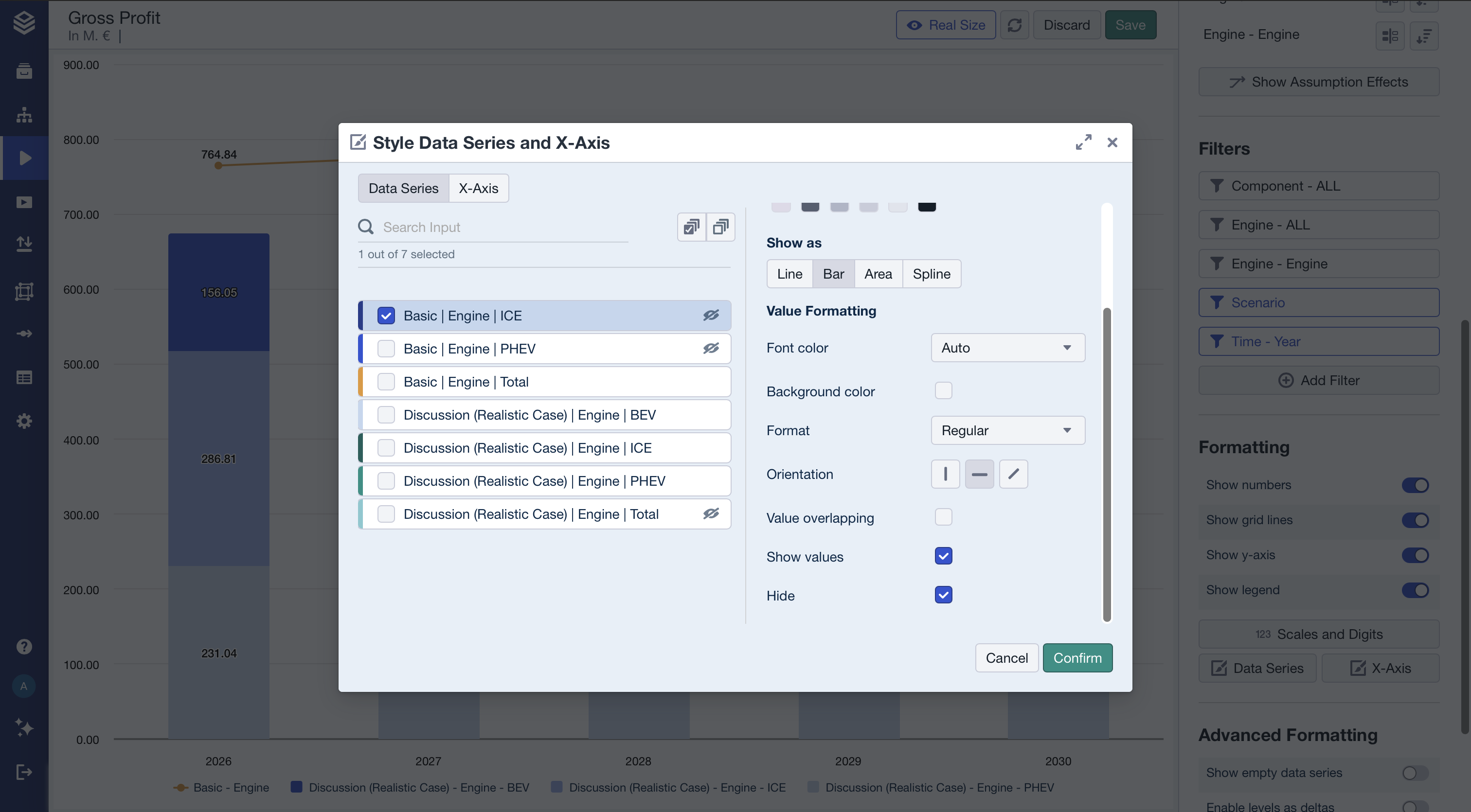
- Open Data Series styling.
- In the list of series, locate the entries for both scenarios.
For Scenario 1 (e.g. “Basic”)
- Keep only the Total visible.
- Hide the detailed breakdown levels (e.g. ICE, BEV, PHEV).
- Set the Total to display as a Line.
For Scenario 2 (e.g. “Discussion (Realistic Case)”)
- Hide the Total.
- Keep the detailed breakdown levels visible.
- Confirm your changes.
5. Ensure bars are stacked
- In the chart settings, activate Stacked.
- Save the chart.
Result
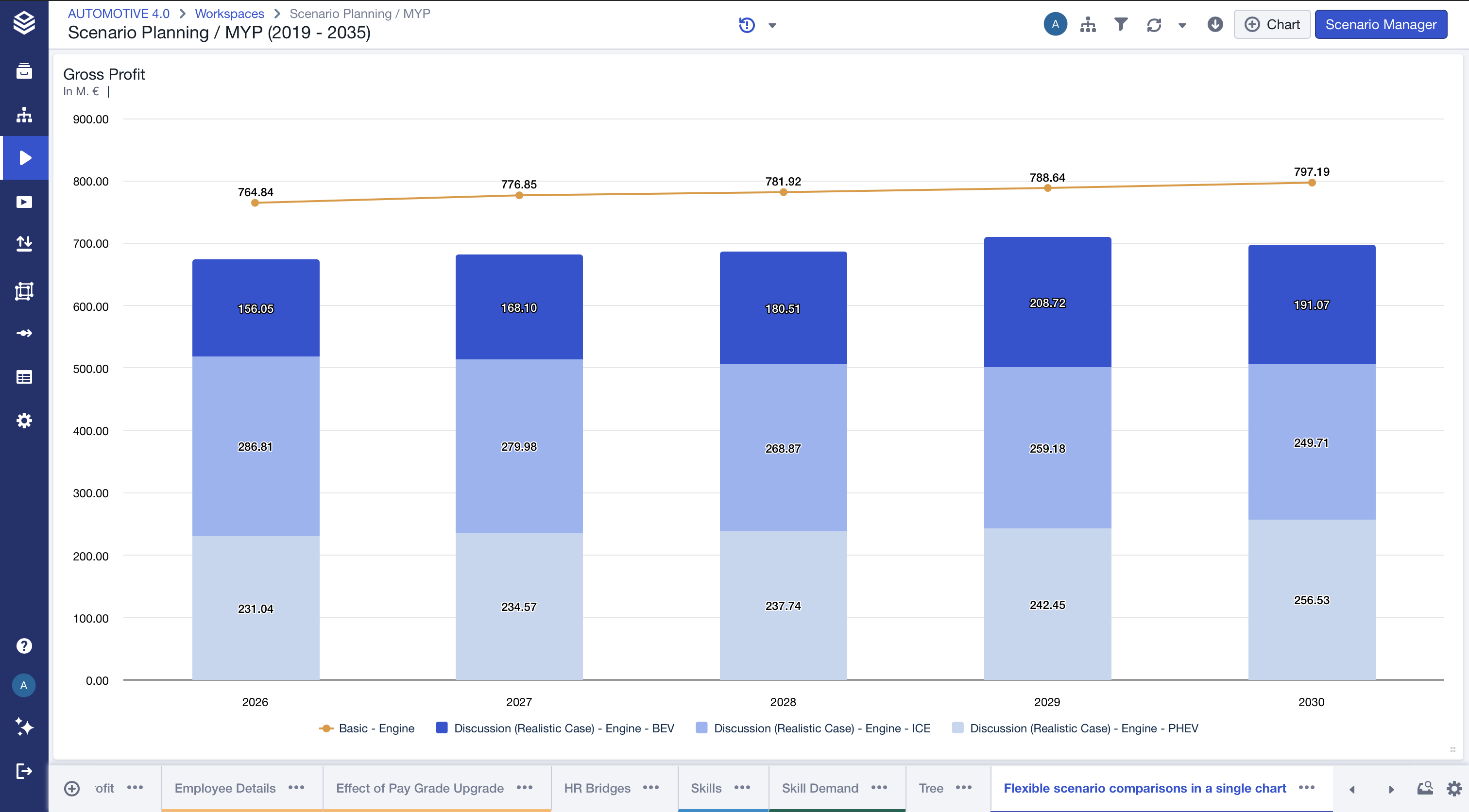
Your chart now displays:
- Scenario 1 (e.g. Basic) as a single total line across time.
- Scenario 2 (e.g. Discussion (Realistic Case)) as stacked bars showing internal composition.
This allows you to compare:
- Overall performance differences between scenarios.
- Structural drivers within one scenario.
- Total vs. composition in a single, consolidated view.
The result is a flexible comparison layout similar to the illustrated example, where one scenario provides a benchmark line and the other reveals detailed category contributions in stacked form.
Troubleshooting
The totals are not appearing correctly. Ensure that:
- Subtotals for the x-axis are activated.
- The “Total” level is included in the data series.
The filter behaves unexpectedly. Select the scenarios first, then configure axes with the “All” level.