
Security Configuration
Valsight offers you to set your security configuration individually, to ensure a user and company optimized setting.
First step is to navigate to the respective menu, which is found after selecting the configuration button  .
.
There you choose the item “settings”.
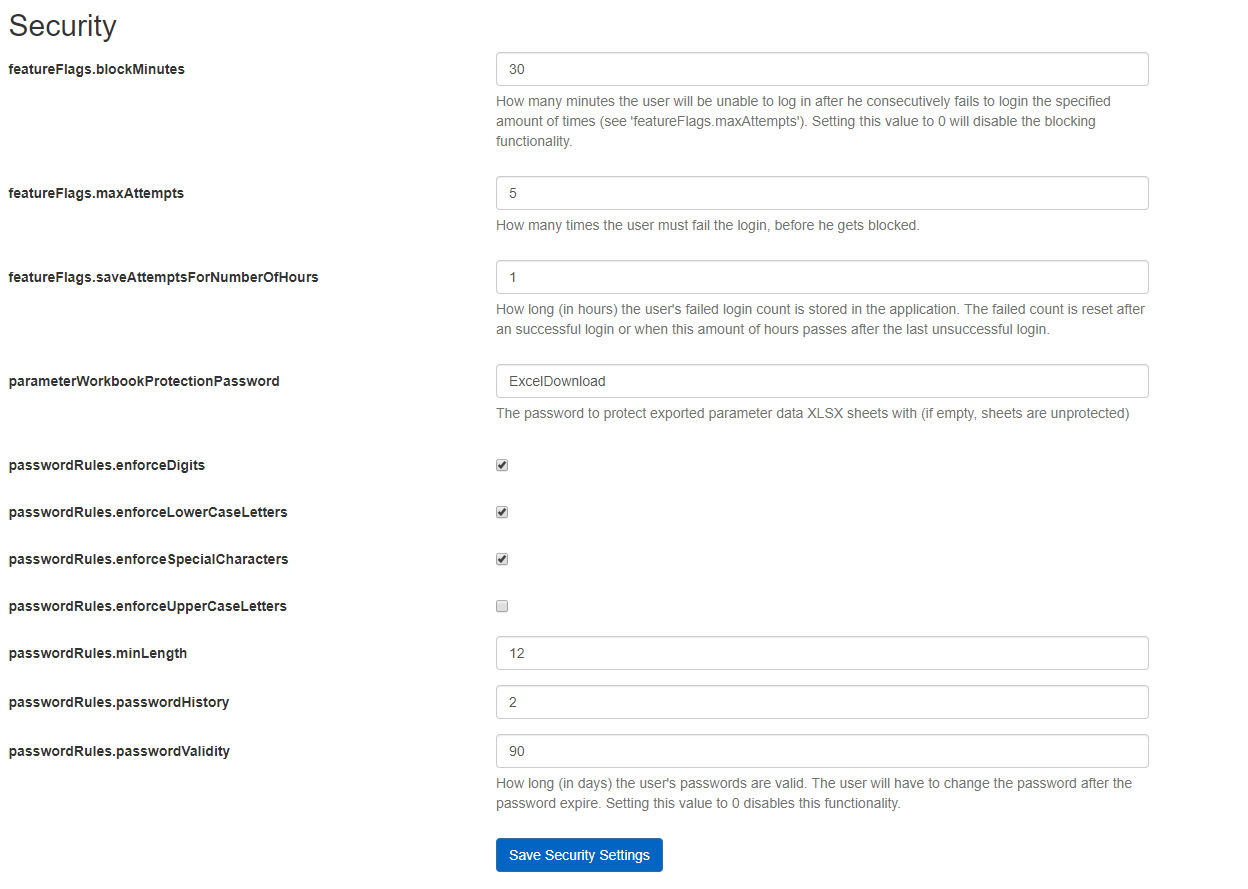
The second section of the following page shows the security settings and offers a range of different guidelines.
-
You can set the blocking time for repeatedly failing logins.

-
The number of failed logins before triggering the previous step (1.).

-
The time in hours for how long the last failed login is stored in Valsight.

-
In case you want to protect your Excel exports, you can add an additional password to the download and export options.

Password settings
Info:
The password settings are not relevant if you are using a company-sigle-sign-on solution to login.
You have also various options to set up your password settings.
You can define digits as mandatory part of a password.

The same goes for lower case letters, as well as special characters and upper case letters.
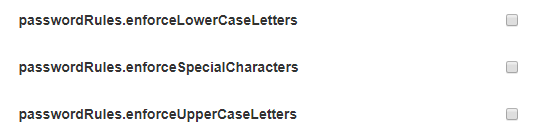
To increase your password security, you can set up the minimum length for passwords.

You can also define the number of last used passwords, which can not be used for the present one.

As one of the most common settings, you are also able to define the time (per days) for how long passwords are valid.

A typical and secure configuration would look as follows.
Data Source Files / Excel Files
By default, the original file that are uploaded into the system can also be downloaded again. As those original files are downloaded unmodified, this might be considered a security risk. You can disable the download by setting the respective option “disableDownloadXLS”. If the option is enabled, the download of data source files is limited to only provide a generated Excel file and not the original.
