
Line-Item Variants
Line-Item variants can be understood as different variations of a single Line-Item and are implemented in the Scenario Manager.
They allow you to simulate scenarios based on the same Line-Item but with each Line-Item variant having modifications in data.
The feature of Line-Item variants improves the clarity of the Scenario Manager and improves the usability of scenario simulations as it helps to group Line-Items.
Info:
Maximum Variants per Line Item
The amount of variants per Line-Item is configurable in the Valsight settings > Settings under ‘System’ and ‘featureFlags.maxvariantsLimitForLineItems’.
The default value is 20 variants per Line-Item.
Using Line-Item Variants
Line-Item variants are used in the Scenario Manager and can be created, edited, and deleted via the Line-Item settings.
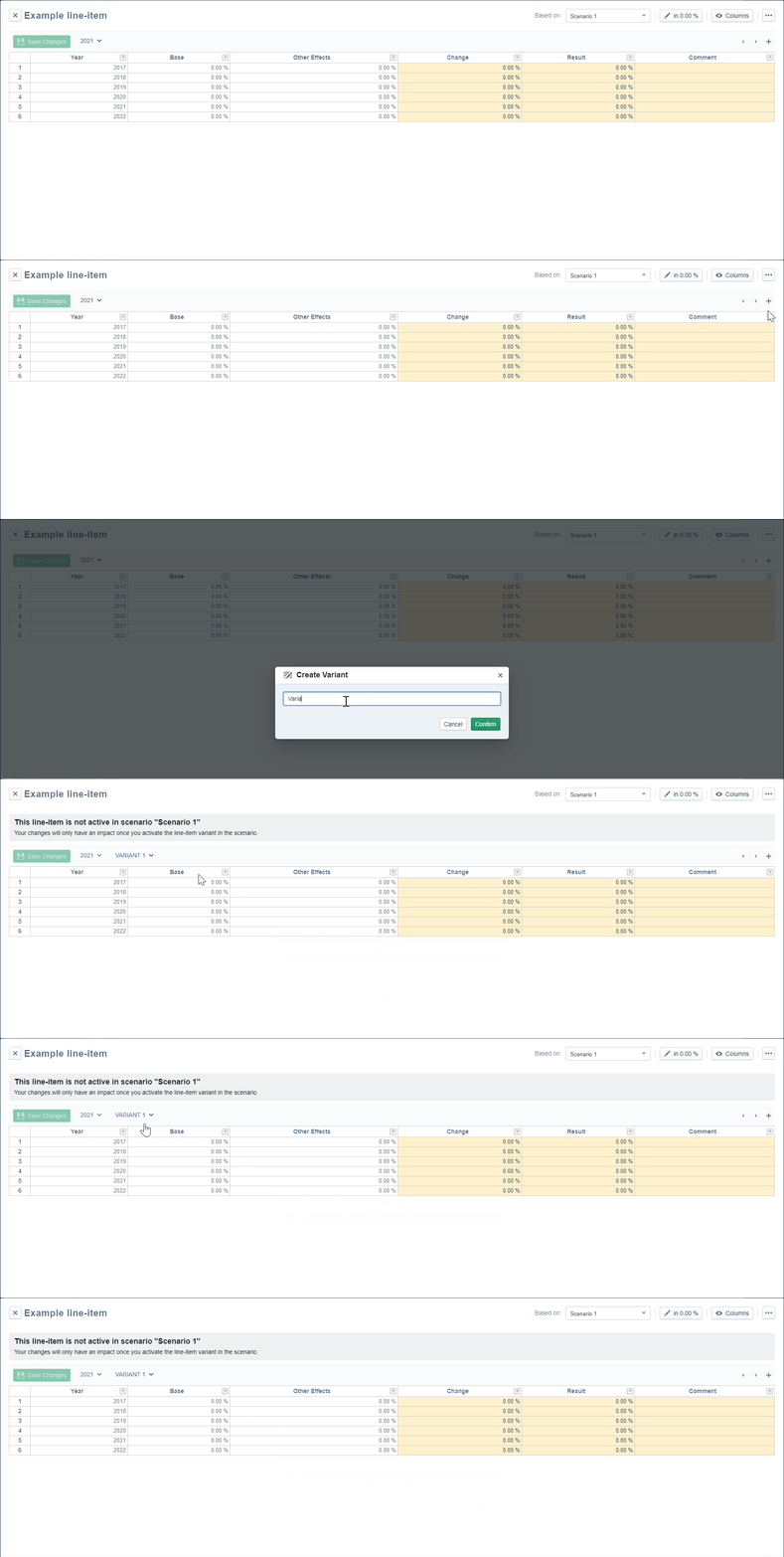
To create a Line-Item variant:
- Open the Line-Item a variant should be created for
- Click on the plus on the right side of the window
- Name your Line-Item variant
- Deleting a Line-Item variant can be done via the drop-down next to the variants name
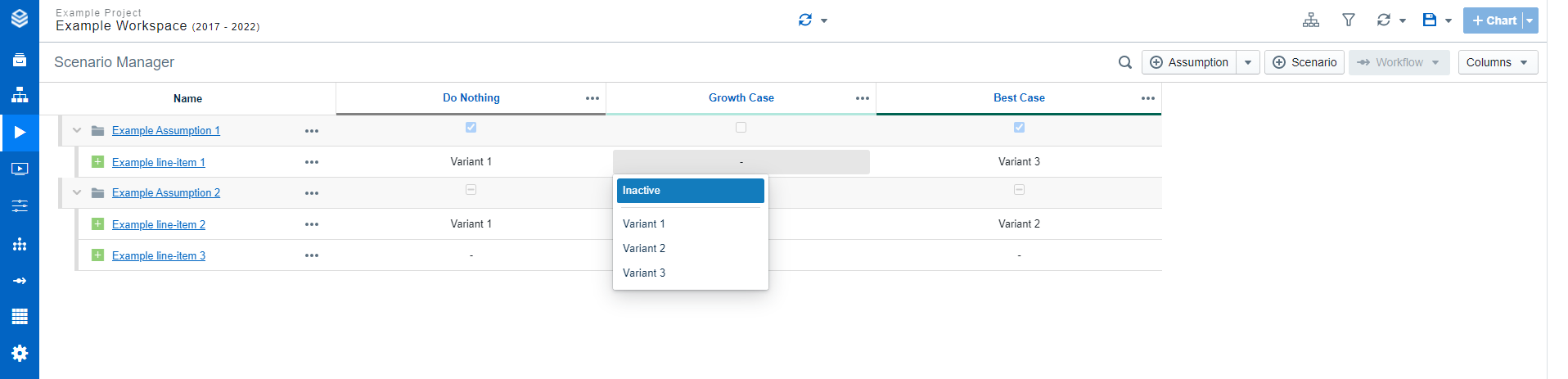
To change the Line-Item variant or deactivate the Line-Item for a scenario, navigate to the Line-Item drop-down menu. Select either another Line-Item variant or ‘Inactive’ in case you want to deactivate the Line-Item.
Info:
Deleting variants
When a variant is activated in the Scenario Manager but gets deleted, the Line-Item will be deactivated for that scenario.
Duplicating & Renaming Line-Item Variants
Navigate to the variant’s three-dot menu to find the duplicate button. You can then rename the variant directly.
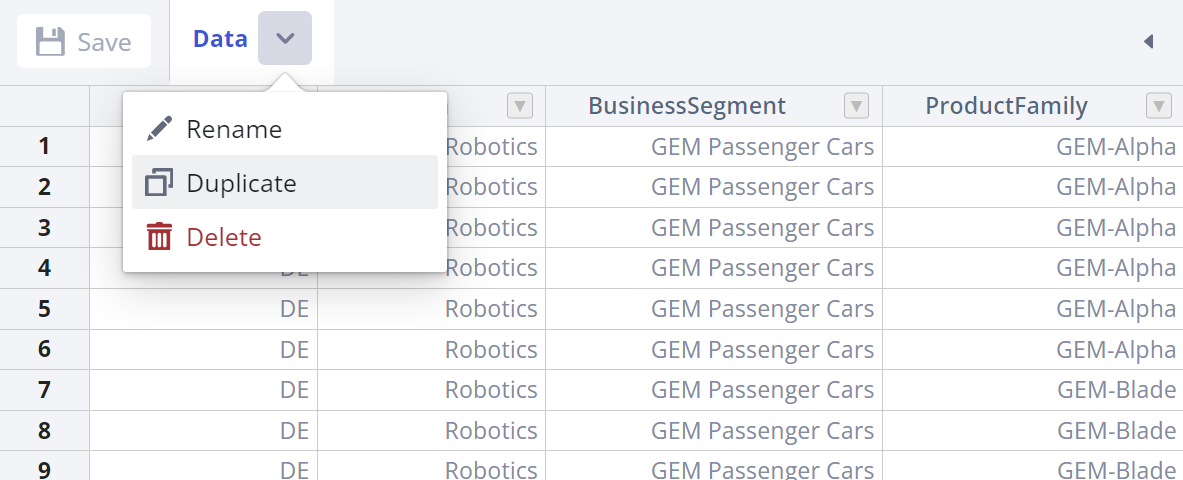
Double-click a variant’s name to rename it afterward.
Line-Item Variants in the Workspace
Example
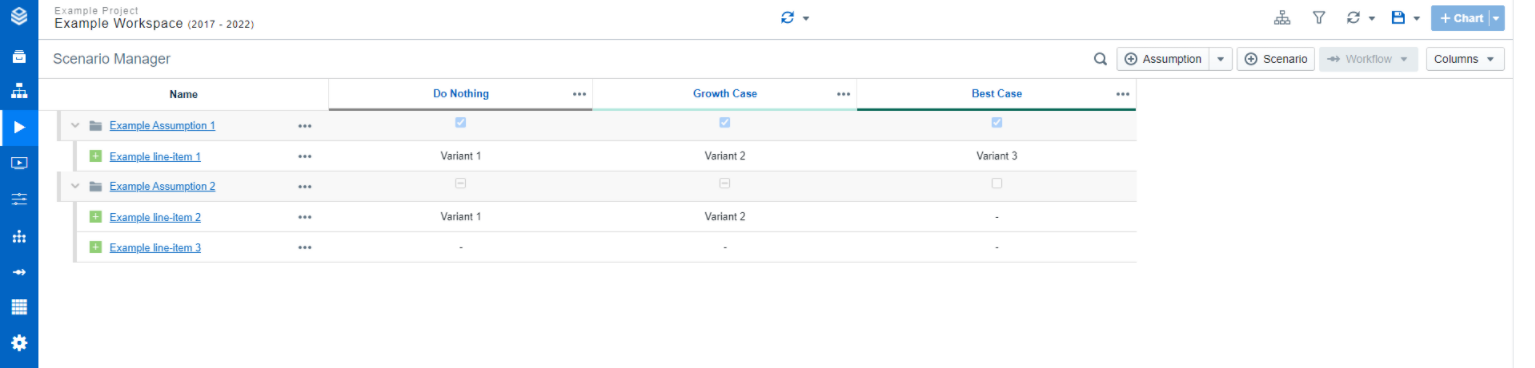
A variant can be used to simulate a scenario based on the same Line-Item but with for example slightly adjusted data.
Line-Item Configurations
Filters work on a Line-Item level. If you set a filter on a Line-Item, it applies to all variants of this Line-Item.
Reconfigurations (e.g. filters, nodes) impact all Line-Item variants.
When duplicating, sharing, or versioning a Line-Item, all variants are included.
More information regarding the versioning of assumptions/Line-Items with variants can be found here.
Using sliders for Line-Items with more than one Line-Item variant is not possible. Click https://valsight-documentation.atlassian.net/l/c/G7LBpaYv to learn more about Sliders.
Info:
Restrictions
The Effects, Before-After, and Impact column cannot be used when a Line-Item has more than one Line-Item variant.