
Applying Filters
Standard Mode
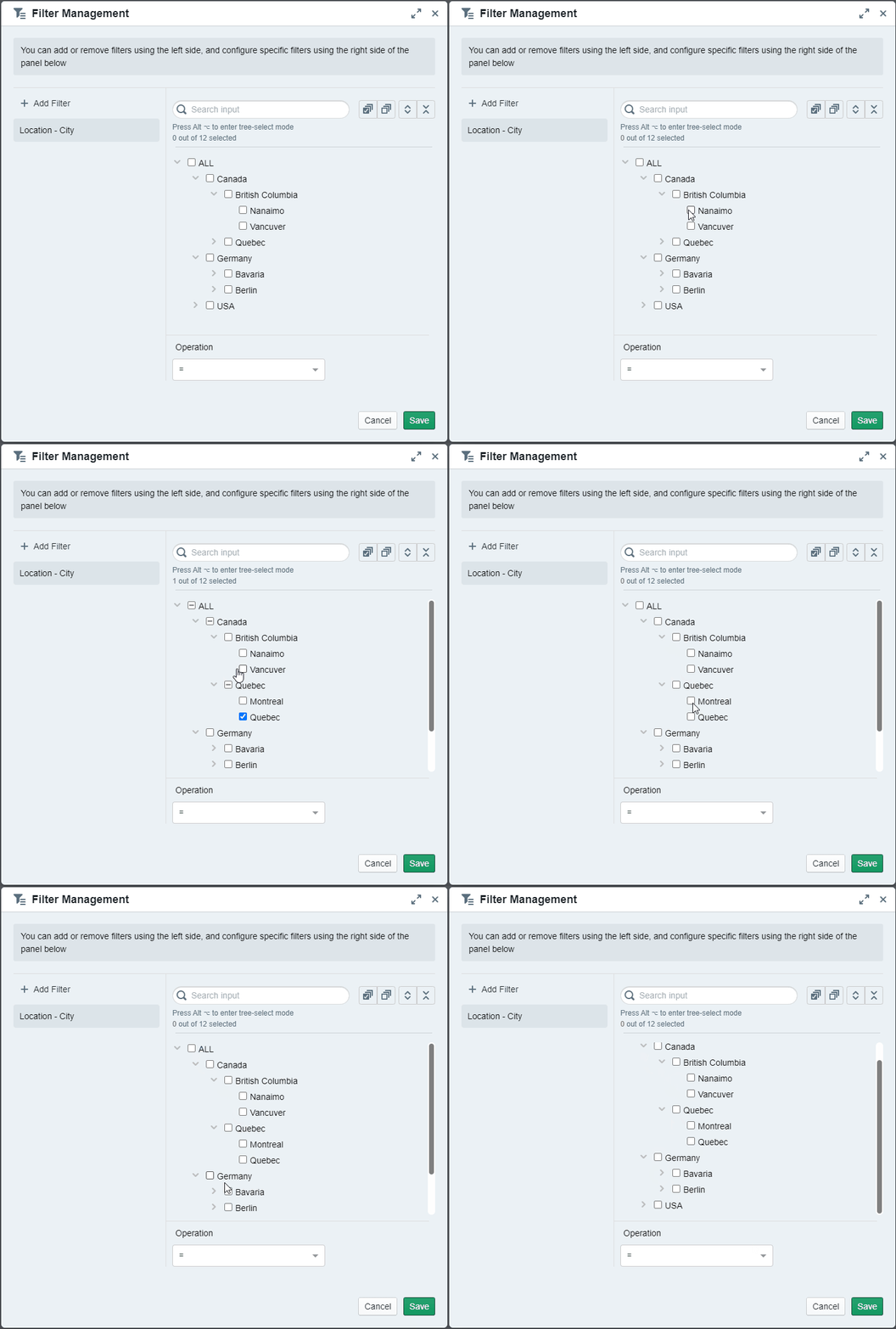
The standard mode when it comes to applying filters in Valsight offers a quick and easy way to customize filter settings. It follows three basic rules:
-
“ALL” literally means ALL
- When you use the “ALL” checkbox, all available checkboxes are checked, even though they might not be visible (e.g. after entering a search input)
-
When a parents’ checkbox is checked, all of its children (and their children) will be checked as well, even though some might not be visible (e.g. after entering a search input)
-
A checked checkbox is not displayed until all children (and children’s children) are checked as well
The advantage of this mode is an easily accessible bulk selection of items with direct visual confirmation.
Tree-Select Mode
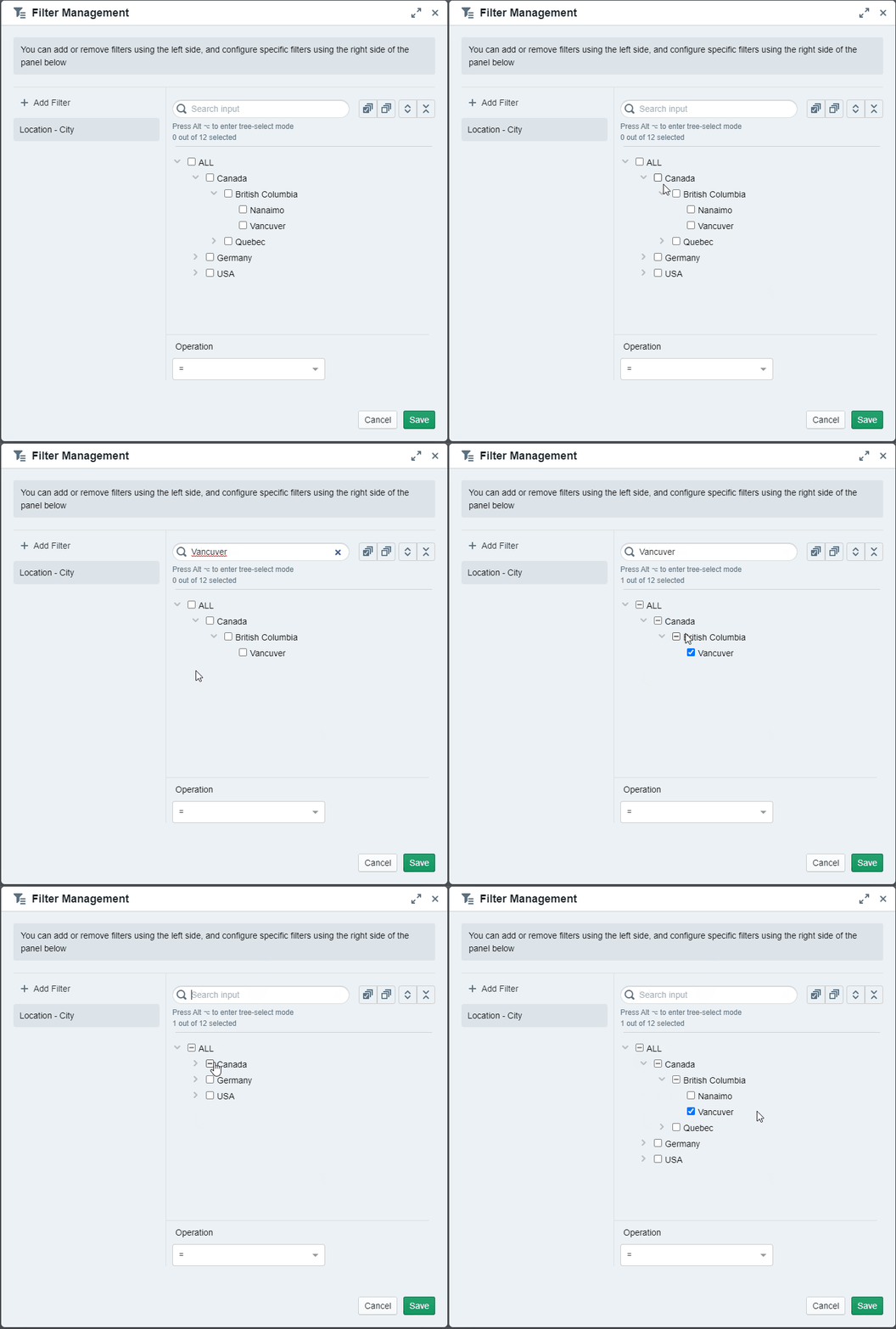
By using the ‘Alt’-button (‘Options’ for Mac) within the filter management, you enter the tree-select mode. This mode enables you to follow a fast ‘what-you-see-is-what-you-get’ approach to customize your filters. It follows four basic rules:
-
“ALL” means all displayed checkboxes
- When you enter a search input and out of a total of 300 items, only 20 are displayed, clicking “ALL” will only select the 20 displayed items
-
Tree-selection
- When a parent’s checkbox is checked, only the displayed children (and children’s children) will be checked as well (used in cases where search inputs are applied). That is contrary to the standard mode as there all children will be checked.
-
Parent checkboxes might also be checked even though not all children (or children’s children) are checked (some children might not be displayed due to a search input)
The advantage of this mode is a faster visual confirmation of a successful filter selection and the assurance that after a search input, only the visible checkboxes will be checked, although a certain parent might feature other children not matching the search input.
Icons | |
|---|---|
 | Counts all lowest levels selected. |
 | Selects all checkboxes. |
 | Deselects all checkboxes. |
 | Expands all items to its lowest level. |
 | Collapses all items to the highest level. |
| Usage |
|---|
| Line-item creation and reconfiguration |
| Workspace filter |
| Template manager |
| Chart editing |
| Scenario export |