
Scenario Versioning
On this page you will find a general description of scenario versions as well as a tutorial on how to create them.
Different Scenario Versions can be compared in Charts. Please keep in mind that you can only restore Assumption Versions!
Sharing a Scenario
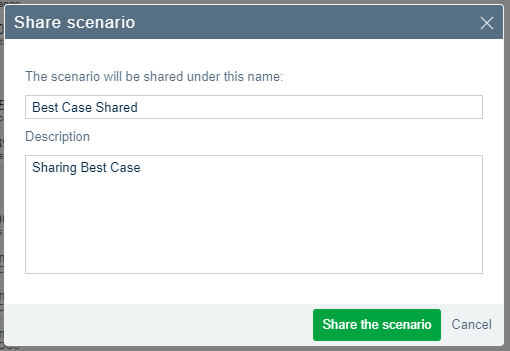
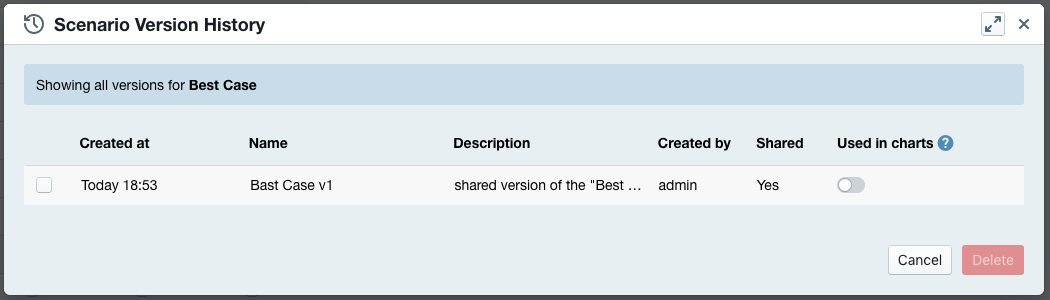
Whenever you Sharea Scenario of which you haven’t created a version, Valsight will automatically create one once its shared. This Version will have the name and description you entered when sharing the scenario.
Changing Assumptions
Whenever you change an Assumption or Line Item that is part of the scenario and save or share said scenario, Valsight will automatically create a new Assumption Version.
This Version will have the name and description you entered when sharing or saving the scenario.
Create a new Scenario Version
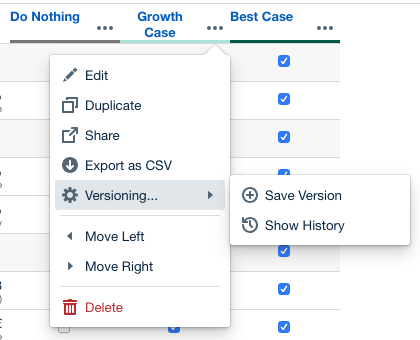
First, open the Scenario Managerand select the Options(3 dots) next to the Scenario you want to version. Then select Versioning → Save Version. Please keep in mind that Scenario Versions can’t be deleted.
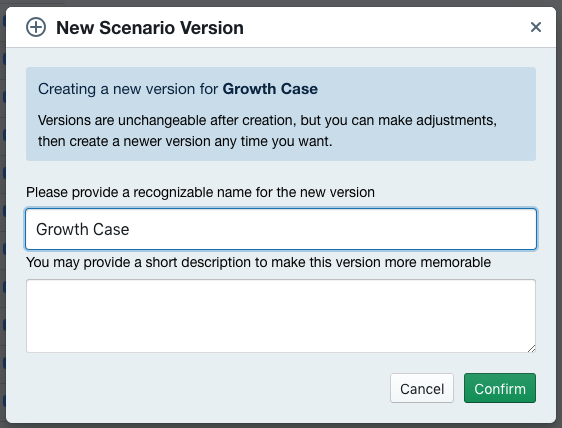
Now you can name your Scenario Version, add a description (optional) and Confirm to save. Please keep in mind that Scenario Version names have to be unique.
Editing Scenario Versions
Open the Scenario Managerand select the Options(3 dots) next to the Scenario of which you want to restore a previous version. Now select Versioning → Show History to open the version history of the selected Scenario. Here you can decide, if the version should be an option to be compared in your charts. See Use Scenario Versions in Charts to learn more.
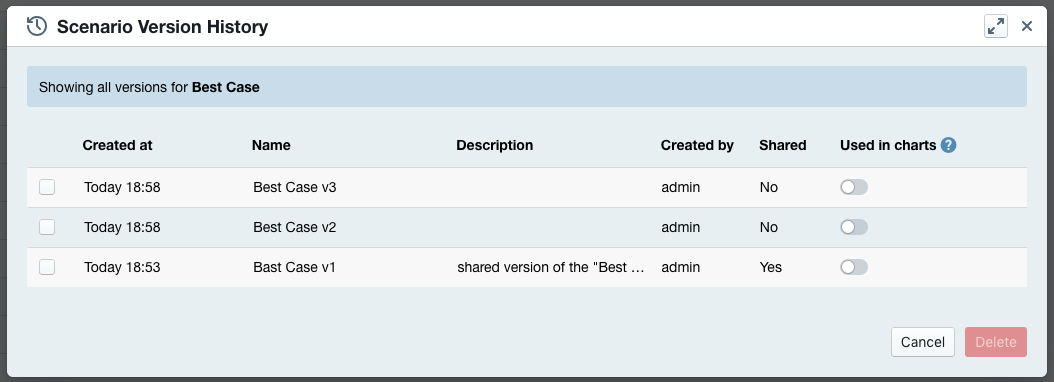
Similar to “Editing Scenario Versions”, you can select the scenario version(s) that you would like to delete, then hit the “Delete” button at the bottom of the dialog:
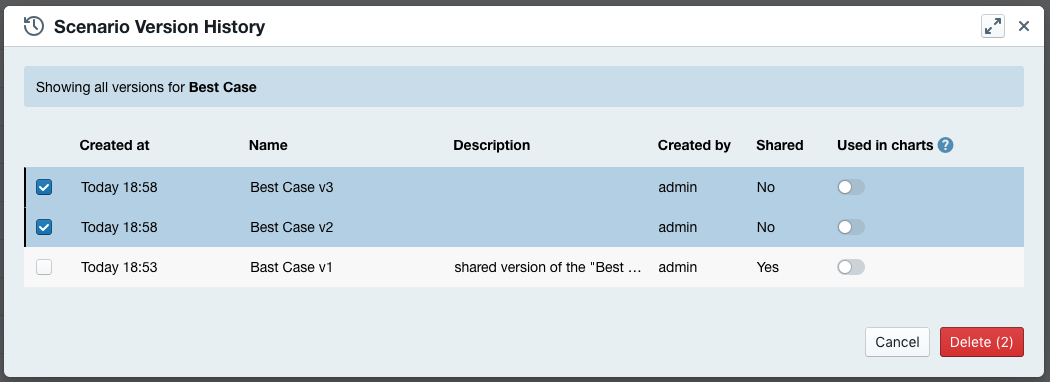
There are currently several outcomes of this operation:
-
You cannot delete a scenario version that is being “shared” (you need to manually “unshare” it before deleting it)
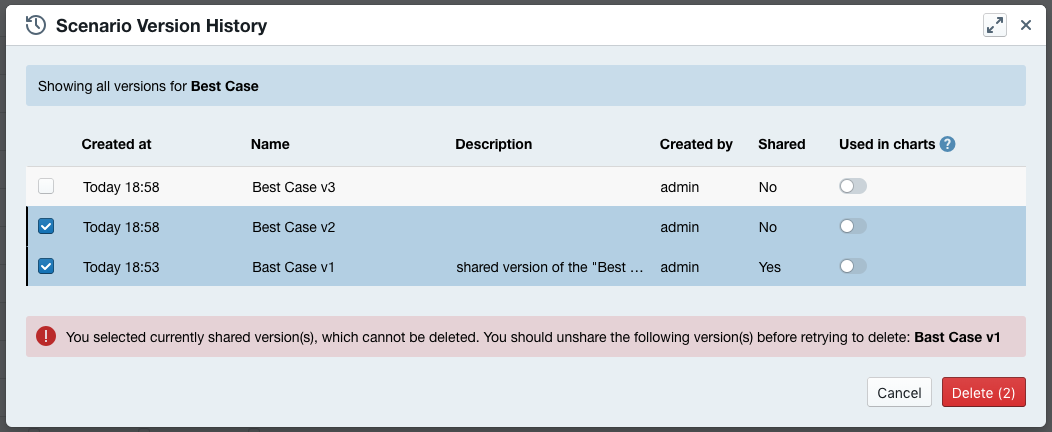
-
If deleting a version will trigger the automatic deletion of other versions that refer to it (but not used anywhere else), you will be prompted a list of “affected versions”. All of these versions (including the ones you are selected) will be removed after you confirm the action:
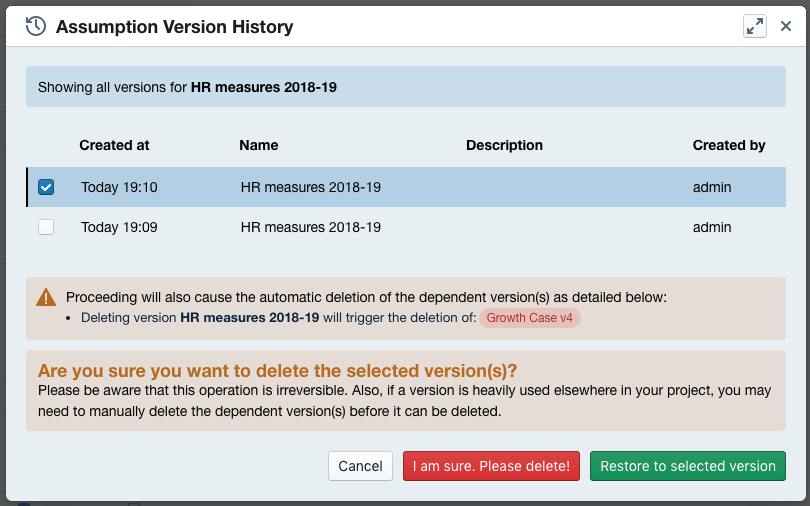
tips: you can mouse-hover on the items to see more details (i.e. which original scenario it is, when it was created, etc.)
-
If deleting a version should trigger the automatic deletion of other versions that refer to it, but these versions are still shared, or otherwise used somewhere else in the project, you will be shown a list of “version dependencies”, from which you can take manual actions before you can come back and retry deleting the version you initially selected:
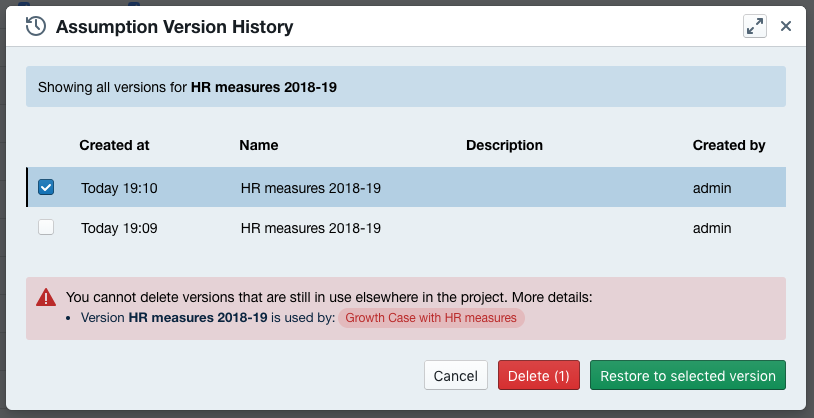
tips: you can mouse-hover on the items to see more details (i.e. which original scenario it is, when it was created, etc.)
ENABLE SCENARIO VERSIONS TO BE USED IN CHARTS
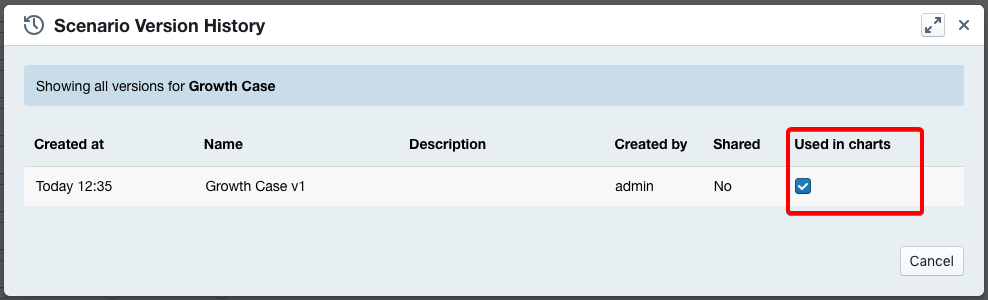
To be able to select your Scenario Version in a chart, you first need to check Used in charts in your Scenario Version History. A more detailed description can be found on the Scenario Versioning Wiki page.
Insert Scenario Versions into Charts
All Scenario versions that are marked as Used in charts will now be selectable in the chart configuration menu.
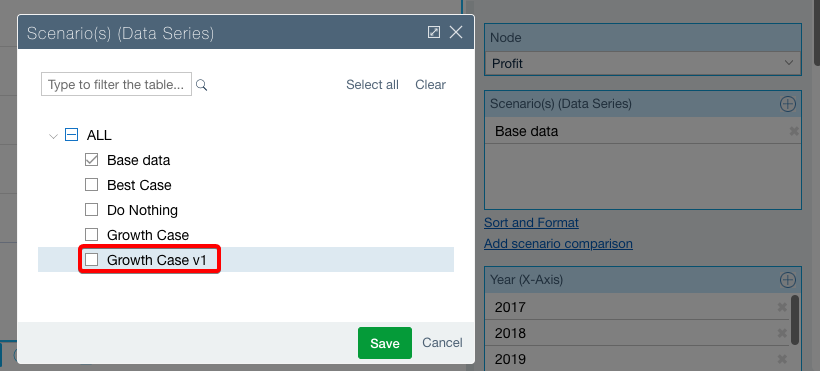
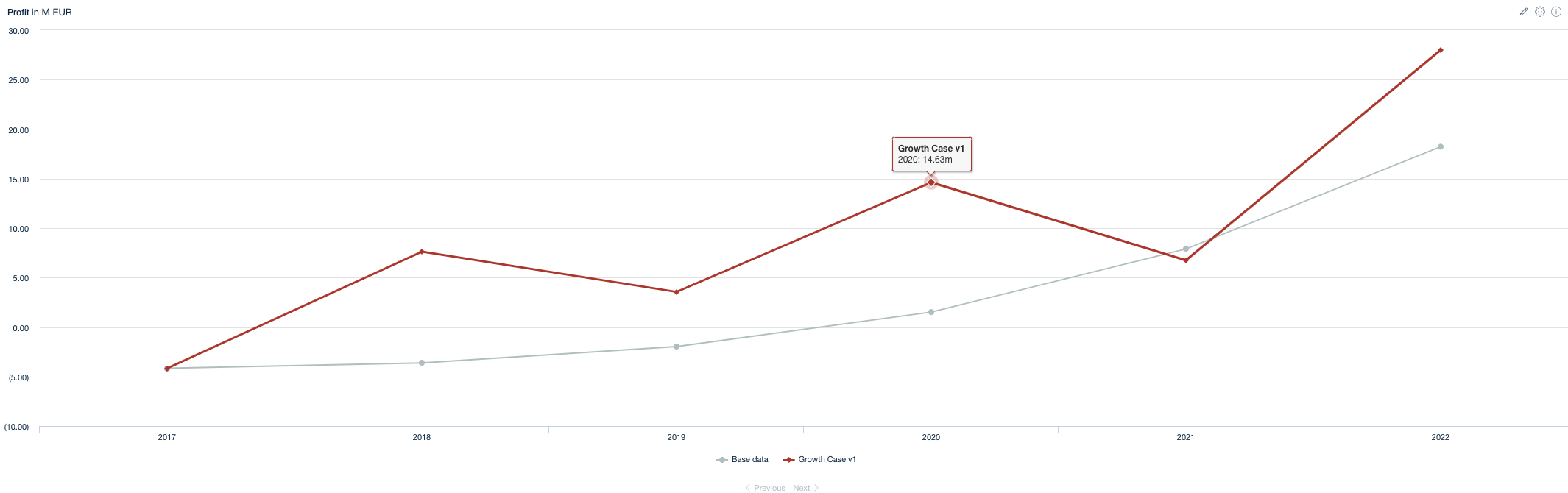
Congratulations, you can now compare different scenarios versions in your charts.
Info:
Learn more about Chart Types and How to Create Charts & Tables.